Welcome to Conversell. This guide walks you through the foundational architecture of the platform, account setup parameters, workspace isolation types, widget customization arrays, conversation state logic routing, core behaviors, and vector data ingestion pipelines.
Account Registration & Setup Profiling
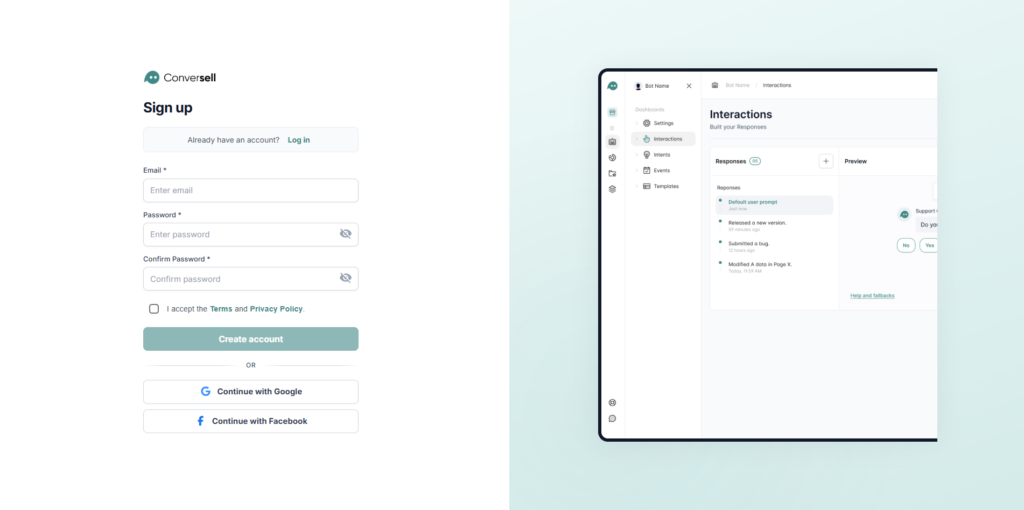
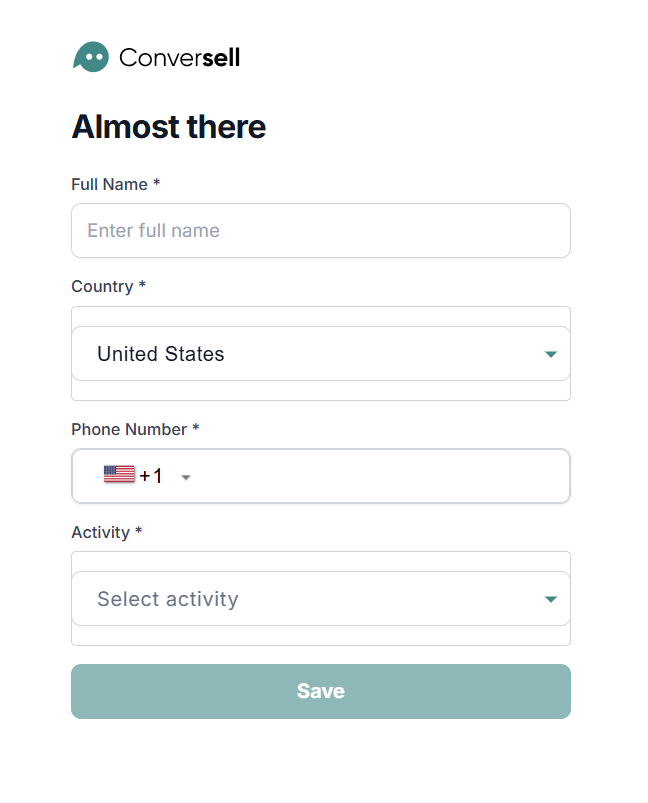
To instantiate a conversational interface environment and unlock the platform’s core automation tools, you must initialize an administrative enterprise account and submit specific regional and operational parameters.
Required Account Profiles
| Parameter | Type | Configuration Criteria |
|---|---|---|
| Full Name | Text Field | Legal administrator user profile identity identifier. |
| Country | Dropdown | Assignment setting region-specific variables, localization, and local timezone matching. |
| Phone Number | Number String | Contact line containing international country calling codes for 2FA and system notifications. |
| Activity Path | Toggle Matrix | Specifies the foundational channel engine: E-commerce or Other. |
| Activity Path | Description |
|---|---|
| E-commerce Path | Tailored specifically for digital storefront infrastructure. Connecting this path maps external product catalogs and updates real-time order tracking records directly inside the user conversation state. |
| Other Path | Configures a standard informational pipeline suited for static company indexing, customer support routing, and general web assistance frameworks. |
Workspace Integration Paradigms
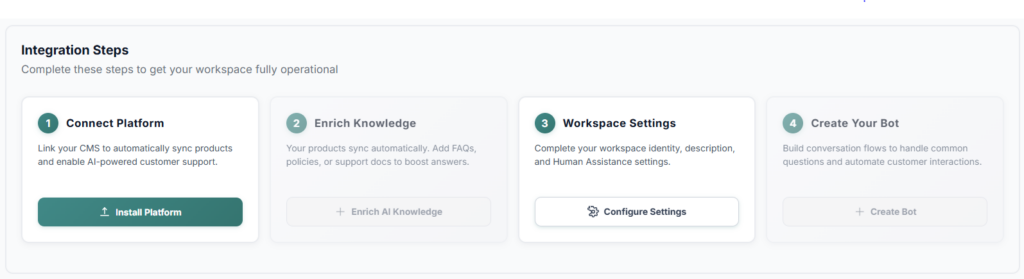
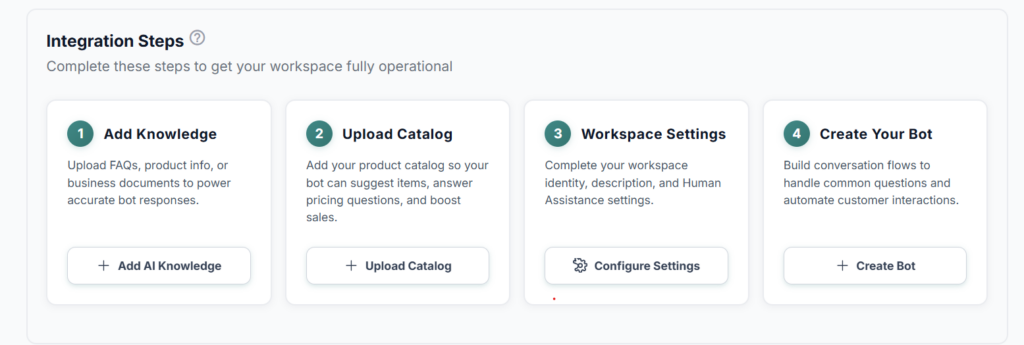
The layout engine splits workspace setup into two targeted operational pathways depending on data synchronization layers.
[ Integration Path Toggle ]
             │
  ┌──────────┴──────────┐
  ▼                     ▼
[ E-Commerce Platform ] [ Custom Website URL ]
├── Native API Sync     ├── Web Crawler
└── Automated Parsing   └── Manual Catalog Ingestion
E-Commerce Automated Platform Workspace
Designed for automated workflows across Shopify, Salla, WooCommerce, or related web stores.
- Automated Sync Matrix: Direct backend sync captures active product inventories, nested collections, live customer order registries, and shipping datasets.
- Knowledge Base Stratification: Enriches raw transactional data with custom knowledge injections via the Enrich AI Knowledge operations interface. Administrators input manual FAQs, corporate operational policies, shipping rules, and custom return matrices.
Custom Website Workspace
Designed for standard URLs running independent web architectures without native store databases.
- Web Crawler Scraping: Uses the developer’s target index link to collect and index document hierarchies across the custom site.
- Manual Catalog Ingestion: Requires developer or administrator uploads of static product lists, localized descriptions, unit pricing maps, and item variables.
Workspace Infrastructure & Settings Reference
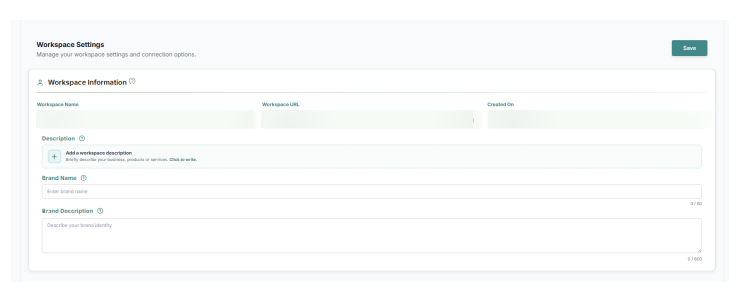
Global control parameters dictate administrative identities, human handoff fallback pathways, and subscription limit constraints.
Workspace Architecture Reference
| System Attribute | Access Type | Protocol Parameters |
|---|---|---|
| Workspace Name | Mutable | Custom organization or project nomenclature visible across systemic dashboard views. |
| Workspace URL | Read-Only | Non-editable unique system root string pointing directly to the project directory. |
| Creation Timestamp | Read-Only | Cryptographic record mapping precise server instance generation times. |
| Workspace Description | Mutable | Meta-summary framing the functional scope of the automated system for internal teams. |
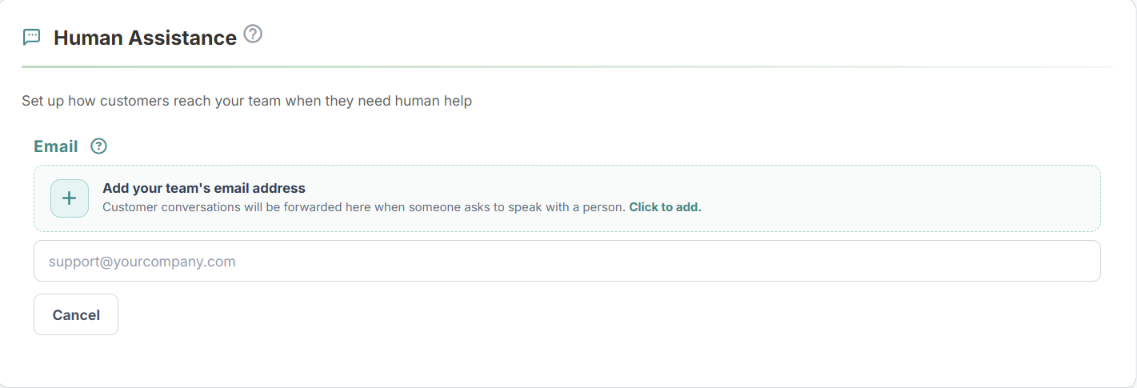
Human Assistance Fallback Protocol
Manages handoff alerts. Providing an administrative operational email routes automated system alerts to your human response matrix immediately following a user handoff request hook.
When a user triggers an active human agent routing flag, an automated notification containing the customer profile context and transcript index is dispatched to the configured email location.
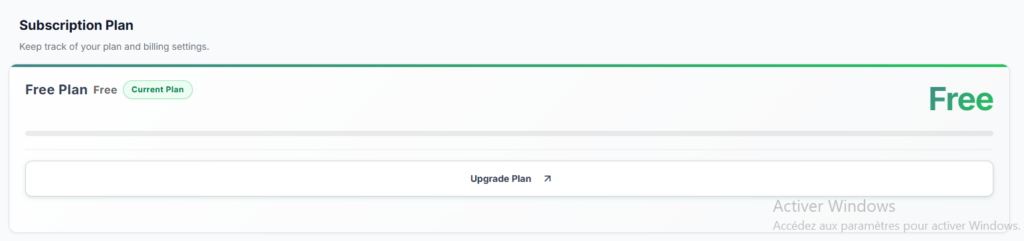
Subscription Tier Management
Maintains systemic parameters for tracking active account statuses, expiration date boundaries, and feature tier permissions.
- Plan Visibility: Displays current plan attributes, renewal dates, and resource limitations.
- Scaling Operations: Accessing the Upgrade Plan link routes administrators to the billing engine to modify functional tiers or expand resource caps.
Channel Provisioning Tier Constraints
| Provisioned Channel | Free Tier | Premium Tier |
|---|---|---|
| Widget Chat (Standard On-Page Embed) | Optional | Optional |
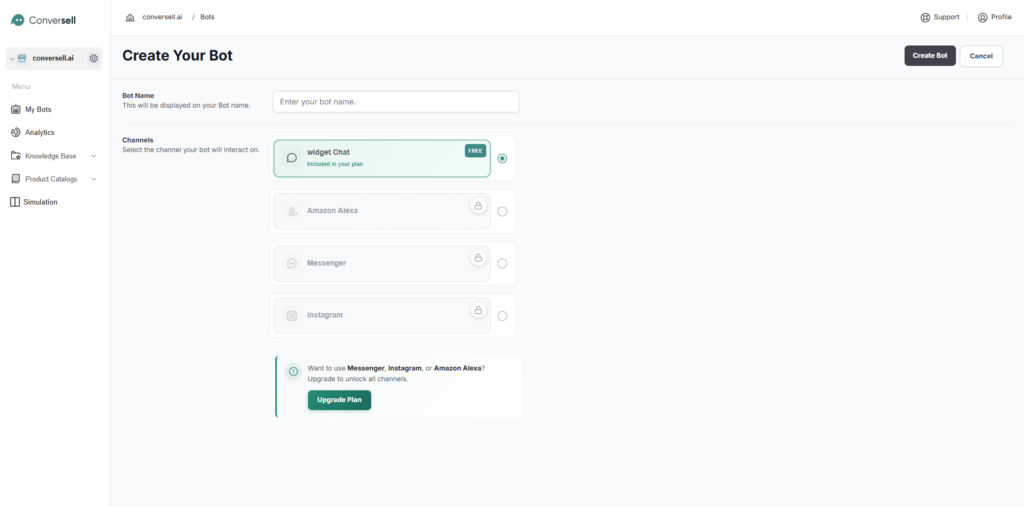
| Meta Messenger Integration | Disabled | Optional |
| Instagram DM Integration | Disabled | Optional |
| Amazon Alexa Integration | Disabled | Optional |
The Central Management Dashboard (My Bots)
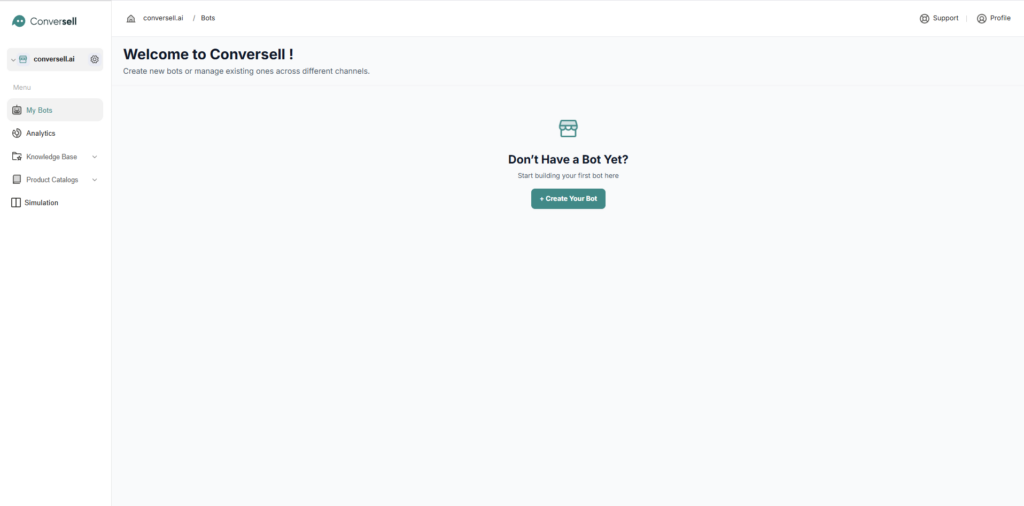
The My Bots interface acts as the primary system control dashboard for instantiating, auditing, scaling, and managing your automated conversational instances across separate communication networks.
Launching Your Assistant
- Select + Create Your Bot inside the primary control view.
- Provide a unique string for the Bot Name field. This name serves as the definitive public identity layer rendered to consumers during interactions.
- Establish channel routing links based on your active subscription limits.
Bot Configuration: Identity Systems & UI Persona
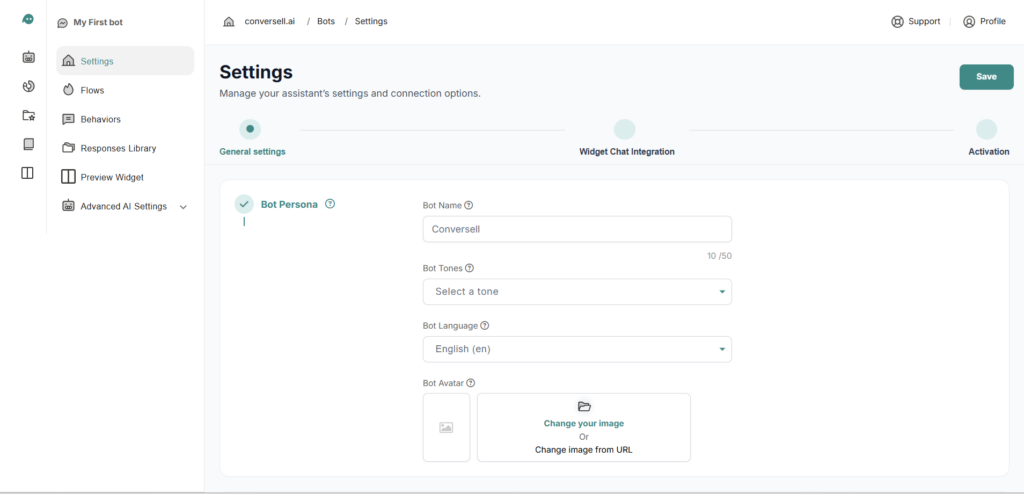
The General Settings module handles parameters defining chatbot identity, interface aesthetics, conversational tone matrices, and user interaction indicators.
Bot Persona Variables
| Variable | Description |
|---|---|
| Bot Name | Modifies public display labels without mutating workspace system directories. |
| Bot Tones | Selectable stylistic weights that reformat output delivery to match target communication parameters (e.g., Professional, Friendly, Concise). |
| Bot Language | Fixes the primary localization logic layer used by the bot’s interpretation engine. |
| Bot Avatar | Ingests graphic assets to serve as corporate identity avatars within user speech streams. |
Bot Configuration: Interaction Indicators & Operational Modes
Enhances engagement dynamics and provisions programmatic overrides for automated system availability.
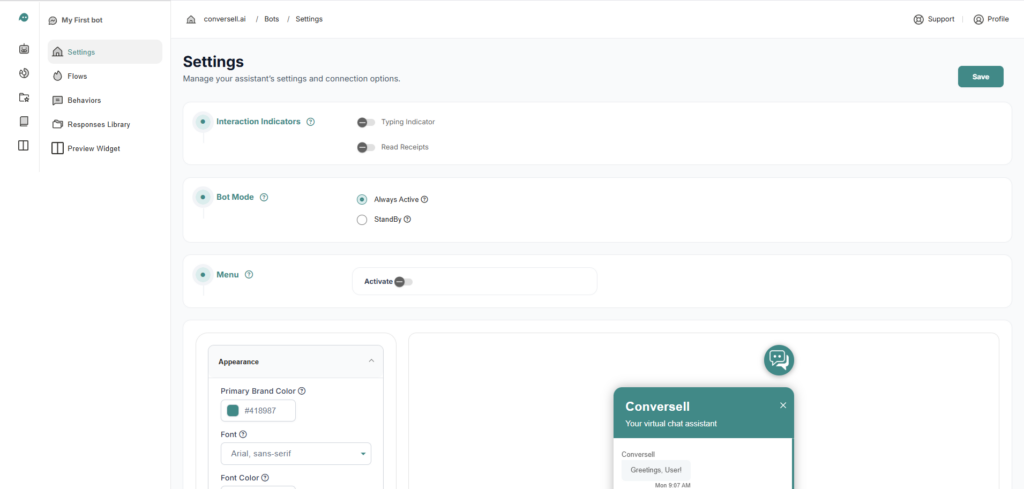
Interaction Indicators Reference
| Indicator Component | Mechanics | System Output |
|---|---|---|
| Typing Indicator | Algorithmic Latency Simulation | Renders an animated typing… layout block while the AI parses data vectors. |
| Read Receipts | State Processing Confirmation | Dispatches a visual dual-checkmark UI block when a message reaches a confirmed end-state. |
Bot Mode Controls
| Mode | Behavior |
|---|---|
| Always Active | Standard programmatic state forcing the system to monitor, evaluate, and reply to client inbound strings 24/7/365. |
| StandBy | Pauses all natural language inference models. The system drops into a passive loop, holding user sessions until a human agent manually intercepts the queue. |
Bot Configuration: Menu Configuration Architecture
The persistent menu framework maps structural link nodes or quick-response triggers within the chat viewport to surface high-frequency workflows.
- Activation State: Hard toggle switch controlling menu visibility across user clients.
- Resource Limits: Restricted to a maximum array size of 3 prioritized navigation paths.
- Response Type Destination Routes:
- Saved Response Integration: Maps a menu item selection to a precompiled workflow template or conversation path inside the platform.
- External URL Redirect: Anchors menu options to hard destination hyperlinks that route clients out of the conversation layer into external web directories.
Bot Configuration: Appearance Settings & UI Overrides
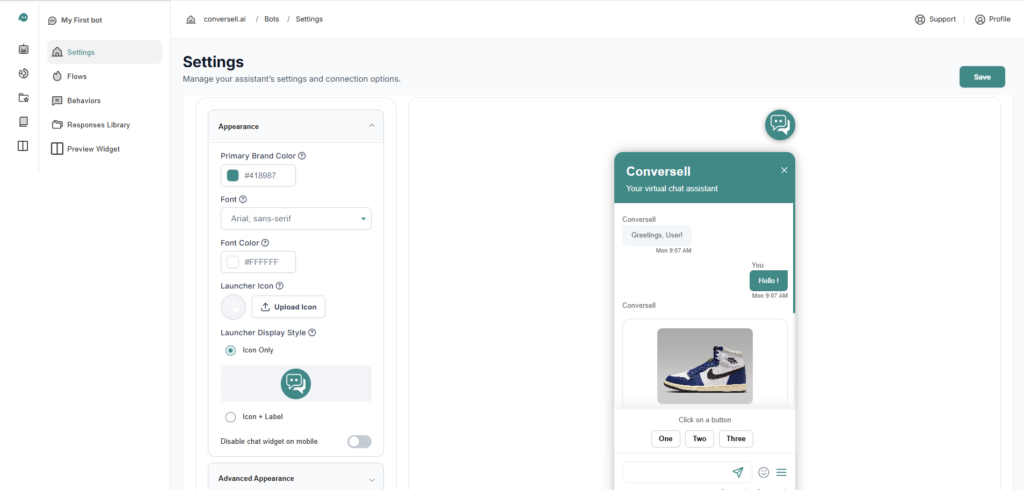
The Appearance Settings block provides visual theme configuration, allowing the chat layout to match external corporate branding identity frameworks.
Visual Styling Variables
| Theme Variable | Parameter Type | Targeted UI Element |
|---|---|---|
| Primary Brand Color | Hex Code Value | Background layout panels, message blocks, and active action CTA links. |
| Typography System | System Dropdown | Systemic font family mapping across all layout views and conversational streams. |
| Font Color | Hex Code Value | Inbound text color parameters calibrated for readable contrast states against brand backgrounds. |
| Launcher Icon | Asset Upload | Custom button graphic used to open the chat framework from the client side. |
Launcher Display Configurations
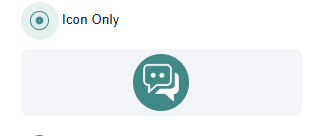
- Icon Only: Renders only the custom background icon asset on the user page.
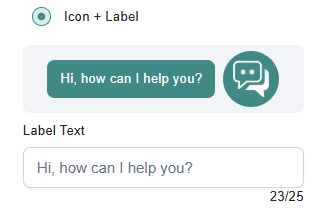
- Icon + Label: Combines the visual asset with an adjacent text label string.
- Mobile Exclusion Toggle: A mechanical switch that drops the runtime layout execution block if browser parameters resolve to mobile device screen scales.
Bot Configuration: Advanced Appearance Customization
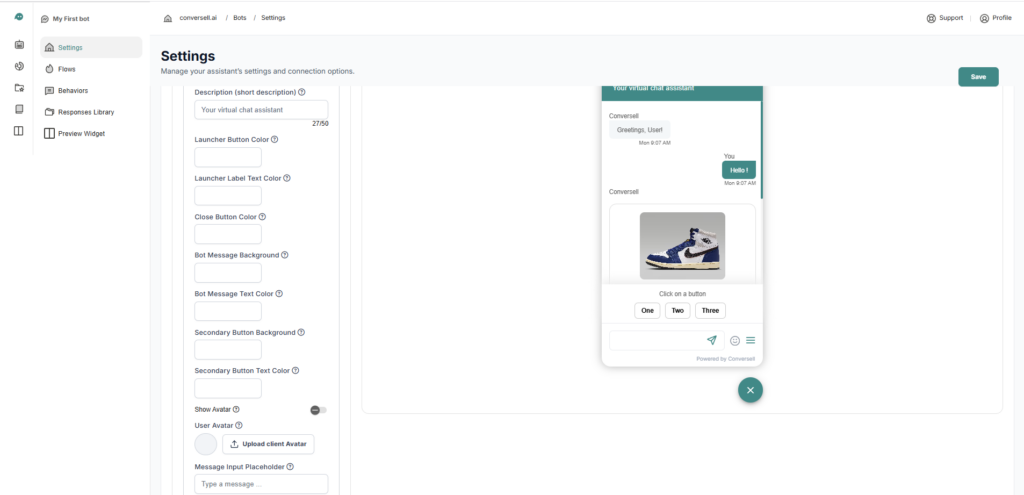
The Advanced Appearance module provides manual element styling controls for precise design modifications.
| Control | Description |
|---|---|
| Description (Short Description) | Custom text line positioned immediately underneath the primary Bot Name inside the widget container view (e.g., Your virtual chat assistant). |
| Launcher Button Color | Changes the base hex background properties of the float button wrapper. |
| Launcher Label Text Color | Controls font color metrics inside the text label string when using Icon + Label layout states. |
| Close Button Color | Changes color values for the minimizing X character button element. |
| Bot Message Background / Text Color | Adjusts visual parameters for background message layers and text fields within automated system answers. |
| Secondary Button Background / Text Color | Controls structural themes for multi-option chips, action selectors, and navigation selections inside the chat pane. |
| Show Avatar Switch | Hard visibility parameter that displays or hides the system avatar graphic file directly next to conversational output tracks. |
| User Avatar | Asset path setting a localized graphic placeholder representing client-side users during conversations. |
| Message Input Placeholder | Custom text line embedded within the empty user input typing space (e.g., Type a message...). |
Bot Configuration: Live Preview & Real-Time Mockups
The right-hand interface column features an interactive rendering simulator that demonstrates UI color combinations, layout rules, font styling, product visual cards, text densities, and multi-choice button components under simulated conditions.
⚠️ STATE SYNCHRONIZATION NOTE: Any interface updates made in the settings view show up instantly inside the mockup preview. If visual balance anomalies emerge during testing, selecting the Reset button rolls back parameters to their initial stable settings.
Widget Chat Client-Side Embedding Protocols
The platform generates optimized HTML elements to handle embedding the chat container onto target web properties.
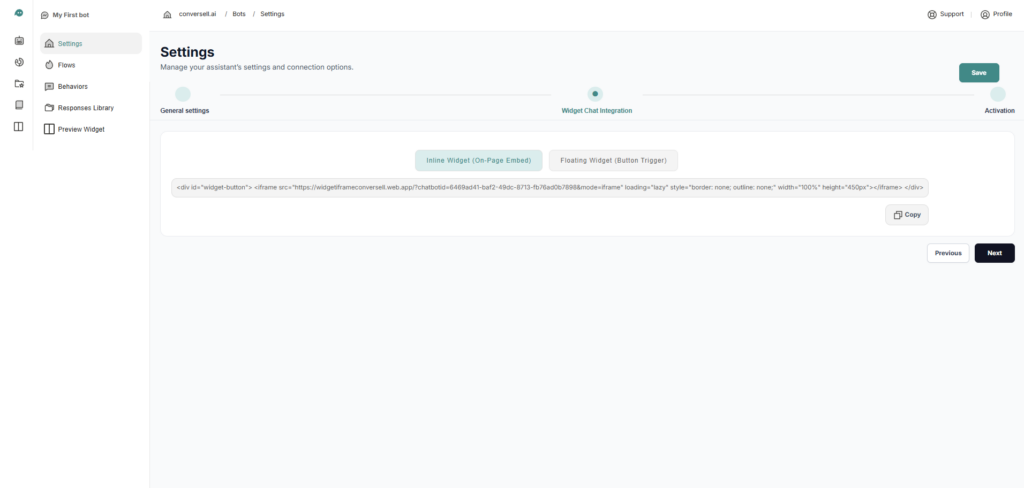
Core Integration Embed Implementations
| Embed Type | Description |
|---|---|
| Inline Widget (On-Page Embed) | Binds the conversational interface directly to an explicit layout box on a target web page. Best used for centralized contact nodes, support portals, or knowledge index directories where the widget remains fixed within the text layout. |
| Floating Widget (Button Trigger) | Generates an overlay container that hovers over standard page elements in a fixed screen location. The component initializes and opens its interface when a user clicks the floating trigger asset. |
Widget Code Deployment & Manual Activation
Once script parameters match visual requirements, administrators handle live platform routing configuration updates via the Activation dashboard module.
Complete Activation Workflow
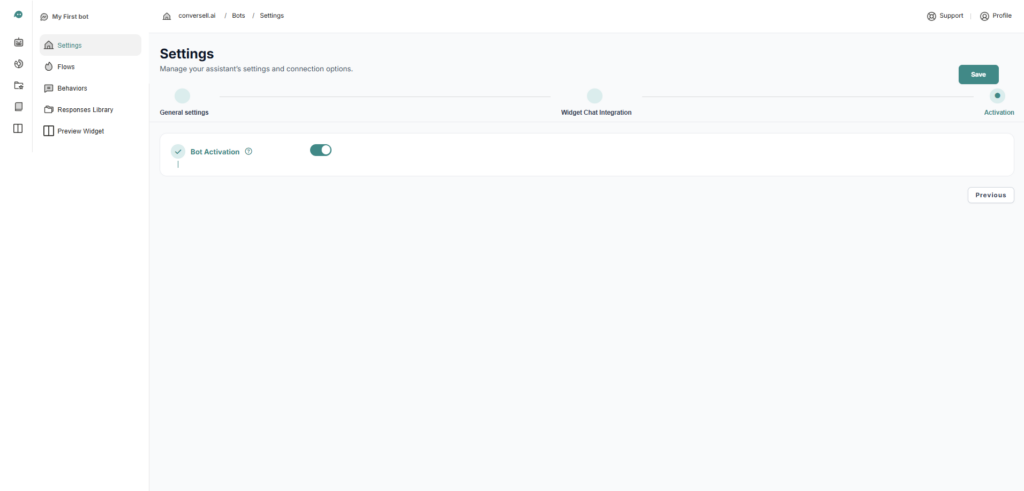
- Move through setup matrices and enter the Activation dashboard view.
- Toggle the Bot Activation switch from « Off » to « On » to authorize remote server API calls.
- Click the green Save button in the upper-right control dock to sync current settings across edge nodes.
⚠️ STATE LOSS WARNING: Interface adjustments do not write to persistent memory arrays automatically. Failure to explicitly select the green Save action button causes state adjustments to clear during subsequent browser sessions.
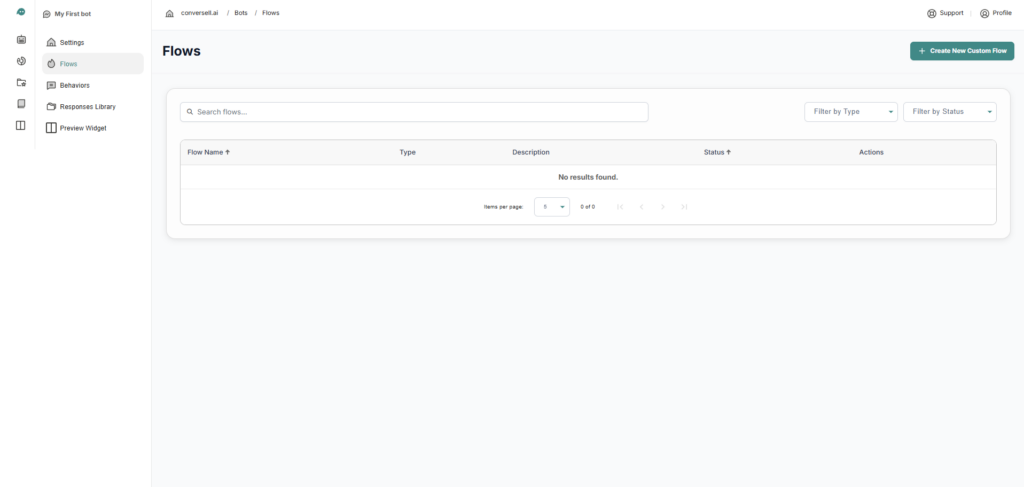
The Flow Engine: Algorithmic Logic Mapping
Custom user routing operations are governed by Conversell’s deterministic state-routing engine. Conversations follow a strict logic gate: Intent → Response.
- Intent Block: Evaluates consumer inbound messages to resolve user intent through natural language parsing.
- Response Processing: Executes a targeted action path or delivers tailored message blocks back to the user client once intent matches are found.
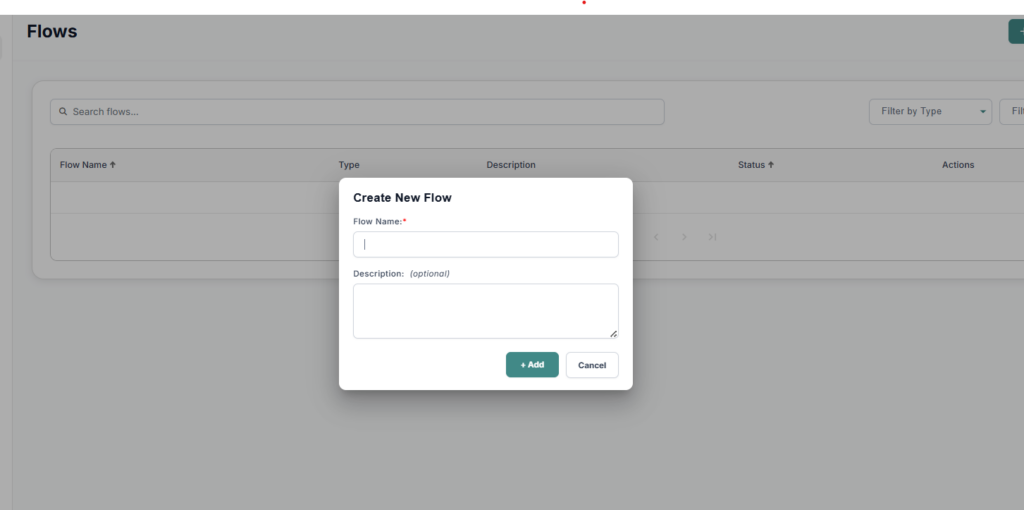
Step-by-Step Custom Flow Generation
- Select + Create New Custom Flow from the upper-right corner of the development workbench.
- In the modal prompt window, provide an internal tracking title label in the Name field.
- Add summary context labels in the Description field to maintain long-term directory clarity.
- Select Add to build the database row and open the central Flow Interface view.
Intent Construction & Natural Language Data Modeling
Intents map semantic patterns to defined user objectives, providing the baseline context required to launch specific workflow logic loops.
Intent Deployment Actions
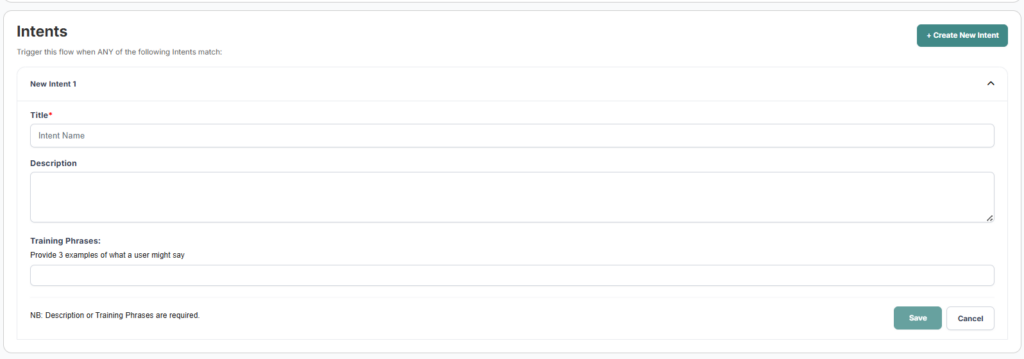
- Click + Create New Intent inside the main flow interface canvas to view the system configuration options.
- Fill out the Intent Title field using clear naming patterns (e.g.,
Explore our Services) for easy future identification. - Add organizational context details to the structural Description text block.
- Input diverse text variations in the Training Phrases area. Ingesting multiple semantic alternatives allows the system to accurately identify user intent even when exact input strings match irregularly.
Response Ingestion & Asset Library Anchoring
Following intent validation, system routing scripts require a designated data payload to return to the active user client.
- Choose From Library: Connects your verified intent trigger directly to a precompiled response template from your asset storage library.
- Create New Response: Launches a blank workspace configuration canvas via + Create New Response to build single-use messaging logic from scratch.

Predefined Core Behaviors Reference
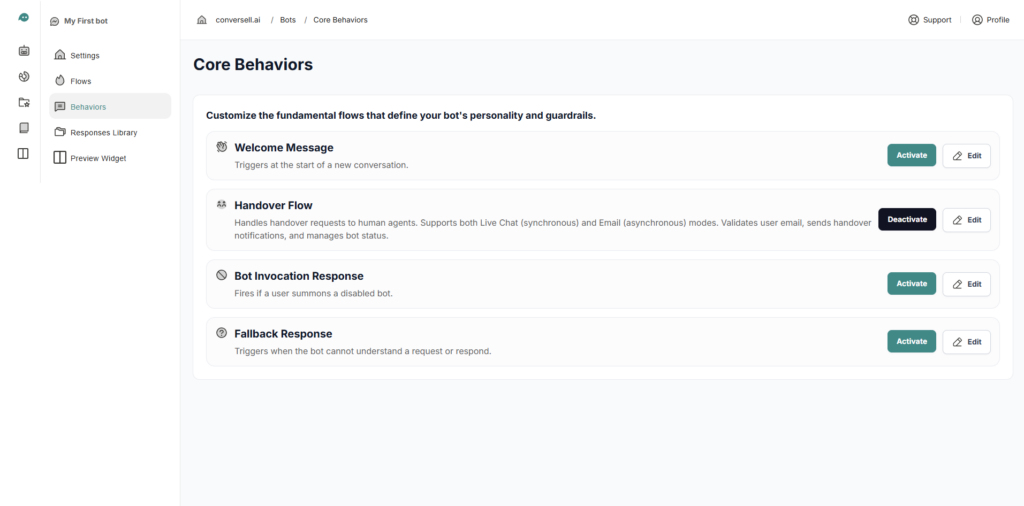
Beyond customized multi-step flows, the framework uses four Core Behaviors designed to secure general conversational logic thresholds.
Predefined Behavior Matrix
| Core Behavior Routine | Operational Purpose | Default System Execution Logic |
|---|---|---|
| Welcome Message | Initialization Layer | Automatically triggers at session launch to prevent blank user viewports. |
| Handover Flow | Human Escalation Bridge | Automates support handoffs, collects user context vectors, and emails the dataset to staff. |
| Bot Invocation Response | Inactive State Handling | Delivers system notices if an inbound text string reaches an archive or disabled bot instance. |
| Fallback Response | Algorithmic Safety Catch | Triggers when verification confidence drops below threshold settings due to unstructured data inputs. |
Core Behavior Engineering & Instruction Modifications
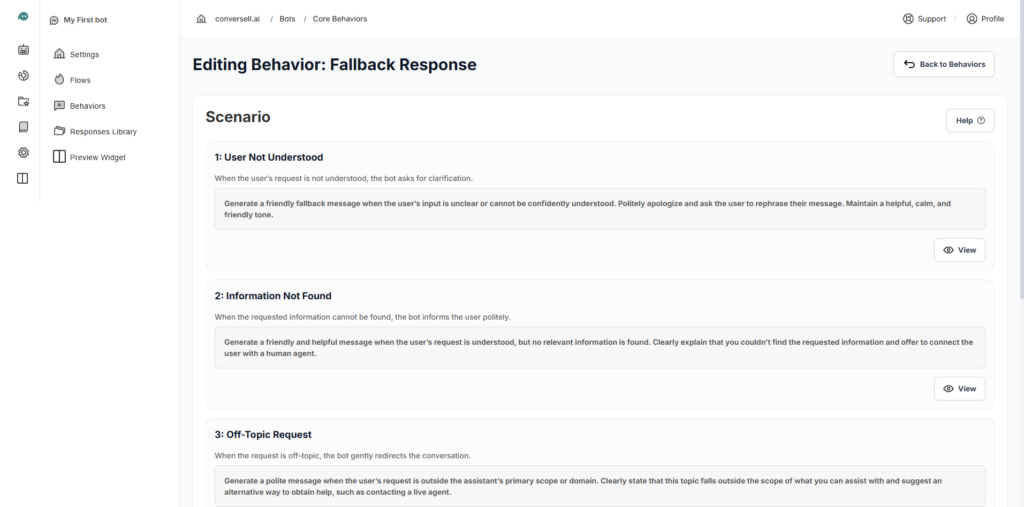
Administrators can customize or adjust individual core behavior processing instructions to maintain tone consistency.
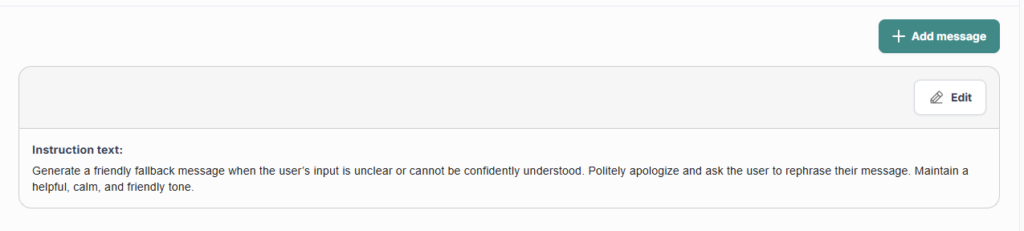
- Instruction Control: Explicitly overrides underlying logic prompts and guidelines to change how the system acts during conversational exceptions.
- The View Utility: Selecting the structural View action button opens targeted macro panels to review or edit individual logic pathways.
⚠️ PROCEED WITH CAUTION: Predefined behaviors dictate global conversational recovery paths. Drastic modifications to foundational instructions can damage semantic accuracy, create loop errors, or break automated customer service pathways.
The Responses Library & Structured Templates
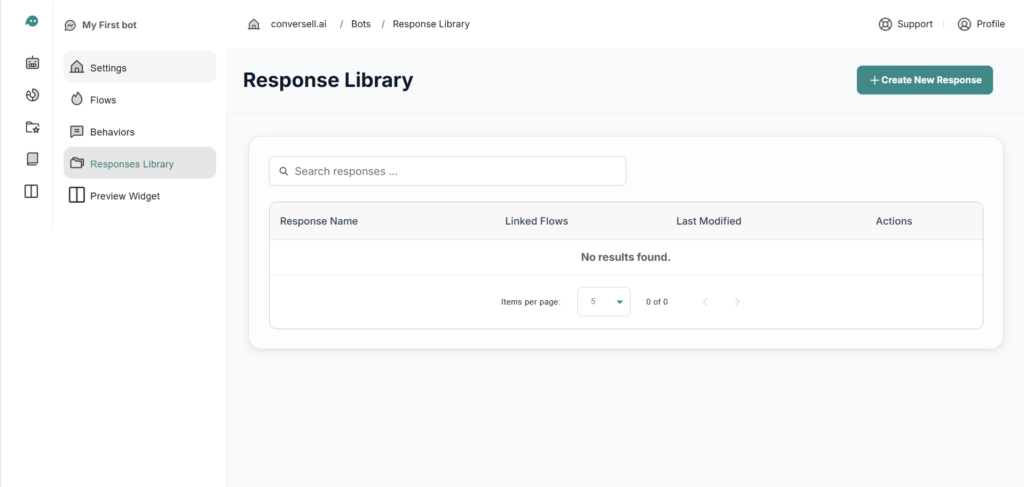
The Responses Library moves beyond flat text strings, serving as a dedicated development environment for creating structured layouts, interactive elements, card frames, and algorithmic text configurations.
- Layout Structure Generation: Allows you to select specialized messaging frameworks that deliver more than simple text fragments.
- Generative Core Routing: Combines AI language generation models with explicit layout formats like carousels, action panels, or link matrices.
- Action Element Anchors: Integrates action buttons to route users through internal application states or drive traffic to external web directories.
Response Architecture Mode Schemas
When initializing a template via + Create New Response, administrators use explicit design parameters across three primary formats.
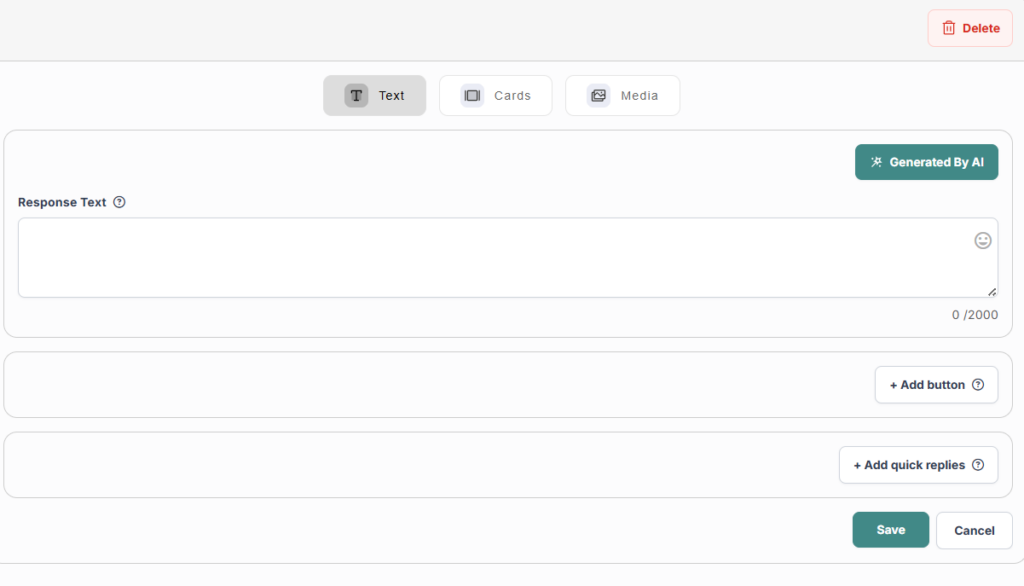
Text Responses
| Mode | Behavior |
|---|---|
| Static Mode | Hardcodes standard output text. The system outputs an exact, unmutated string during runtime match conditions. |
| ✨ AI Mode | Ingests dynamic prompting rules. The conversational framework constructs contextual output text at runtime based on the administrator’s rules. |
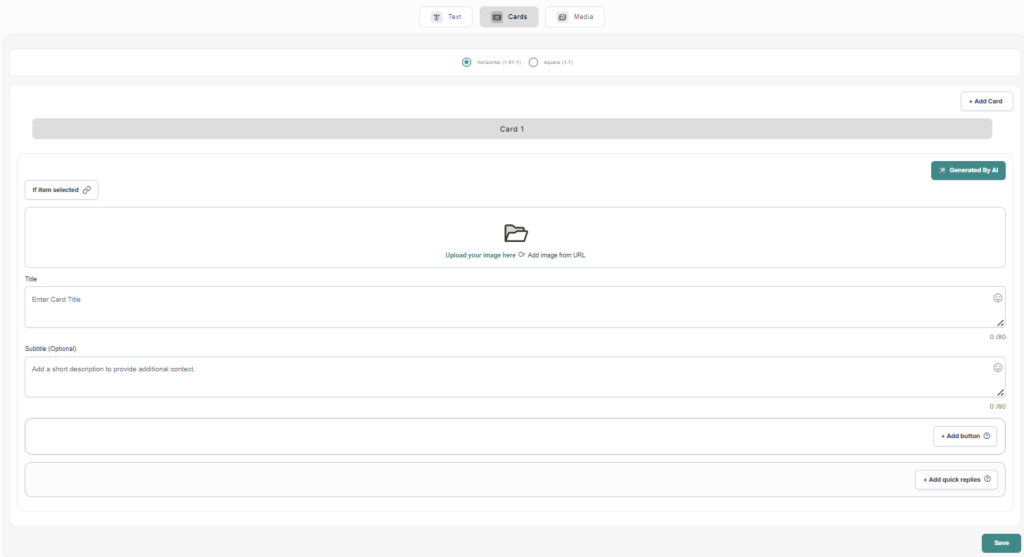
Card Layouts
- Static Mode: Requires manual visual asset staging, hardcoded Title inputs, and fixed Description strings.
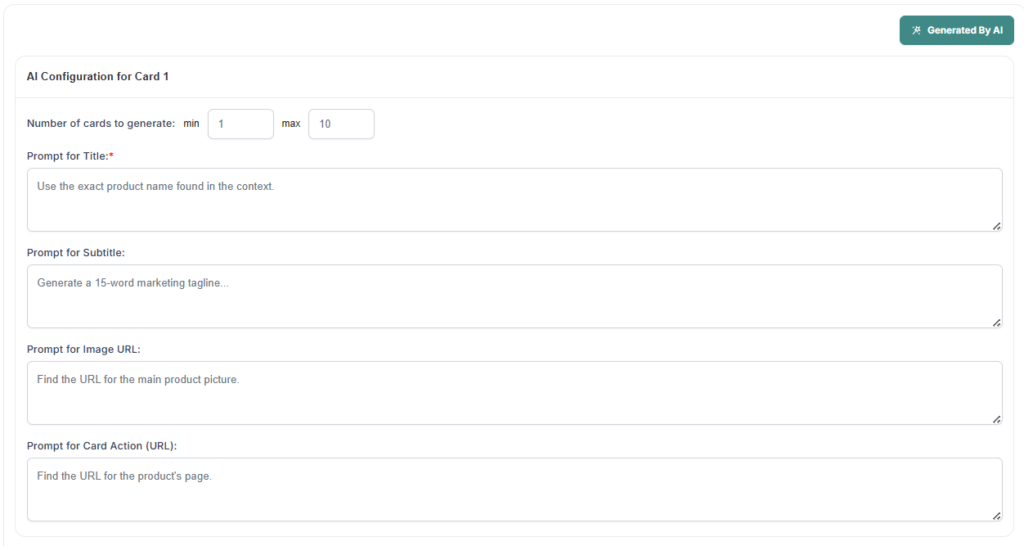
- ✨ AI Mode: Automatically builds dynamic image carousels through four automated parameters:
| AI Parameter | Description |
|---|---|
| Card Count Range | Fixes array size boundaries (scales from 1 to 10 cards). |
| Title Prompt Input | Dictates heading configuration rules. |
| Description Prompt Input | Governs body copy generation metrics. |
| Image URL Logic Pool | Ingests a set of asset links; the AI select engine maps the most contextually relevant image file path to match its generated card titles. |
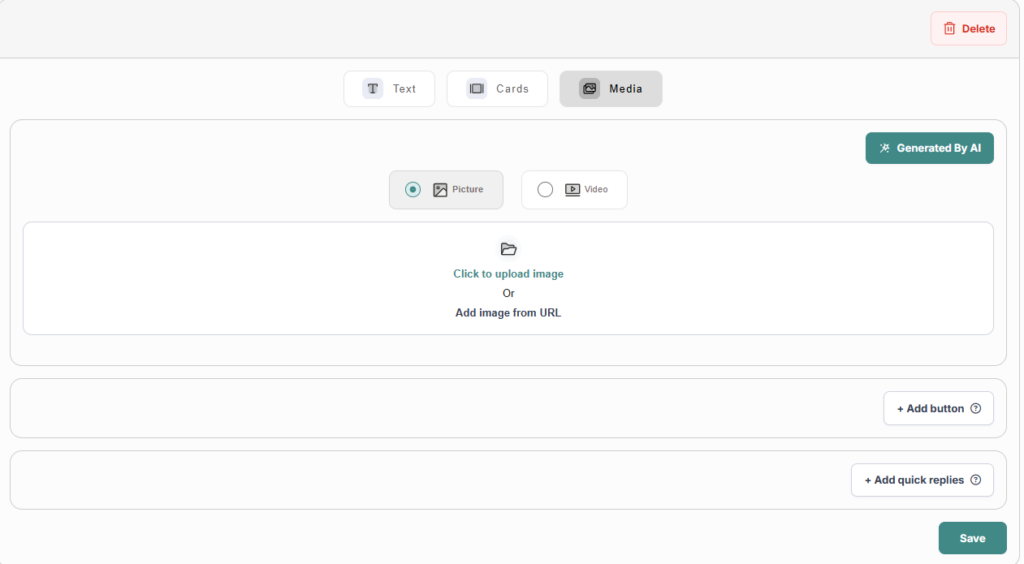
Media Elements
Provisions direct attachments of static asset vectors including PDF manuals, MP4 media clips, or graphic file types within the conversation viewport.
Interactive System Actions & Context Guardrails
To guide users through multi-tier conversation flows, you can combine response outputs with internal operational modifiers.
Behind-The-Scenes AI Instructions
Selecting + Add AI Instruction injects hidden system guardrails into a single response block. This restricts the chatbot’s focus to isolated context criteria, unique tones, or specific safety rules for that exact interaction step.
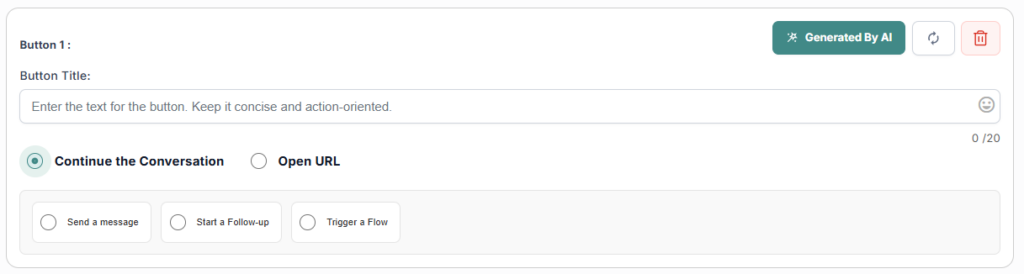
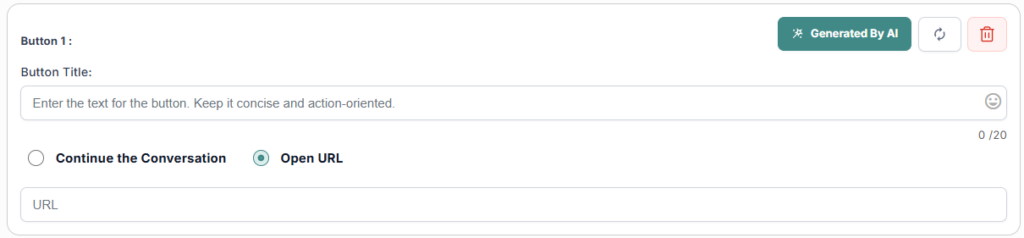
Interactive Buttons Implementation
| Programmatic Action | Functional System Impact |
|---|---|
| Send Intercept Message | Simulates a direct user text input to move the conversational engine to the next logical step. |
| Start Follow-up Asset | Chains multi-tier messages by immediately triggering another response template. |
| Trigger Complex Flow | Exits the basic messaging canvas to launch a complete multi-tier flow sequence. |
| Open URL Endpoint | Bypasses local conversation loops to route the user to an external destination hyperlink. |
✨ AI Button Optimization: Turning on the Generated by AI switch allows the system to analyze conversation histories and suggest optimized, contextual call-to-action strings for button headers.
Quick Reply Chips & Automated Data Harvesting
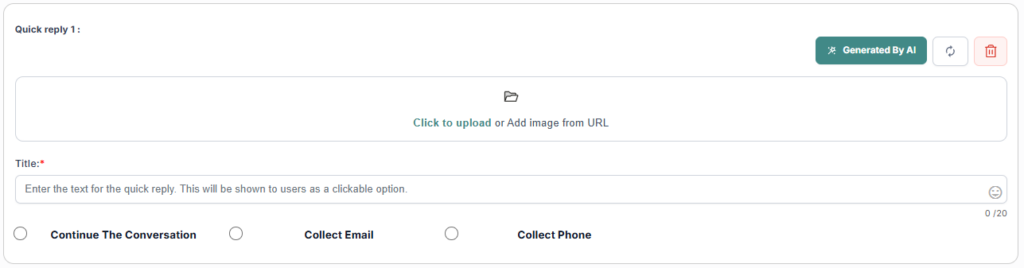
Quick replies serve as selectable navigation tags anchored to the bottom edge of output bubbles to simplify user data input actions.
- Visual Enhancements: Ingests small visual icons or graphical assets directly into the response chips to increase engagement.
- Harvesting Triggers: Automates input validation fields:
- Collect Email Option: Instantly launches a secure text capture field to harvest and validate user email addresses.
- Collect Phone Option: Triggers string checks to extract formatted international telephone numbers.
- Continue Conversation Selection: Simply routes users to the next sequential conversation node.
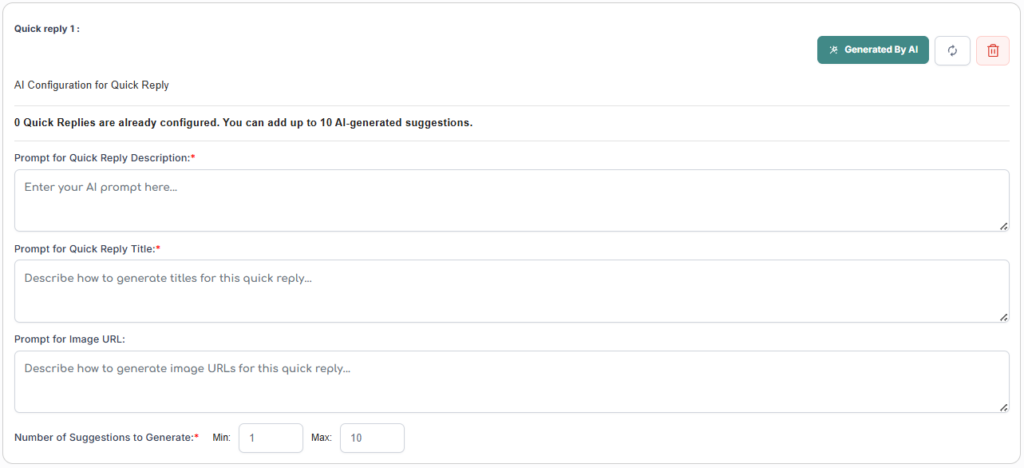
✨ Algorithmic Quick Reply Generation
Enabling the Generated by AI toggle automates choice selection chips based on four specific configuration parameters:
| Parameter | Description |
|---|---|
| Quick Reply Description Prompt | Outlines the core purpose, context boundaries, or operational logic parameters of the active interaction. |
| Quick Reply Title Prompt | Establishes stylistic criteria for text labels (e.g., short energetic action verbs or polite questions). |
| Image URL Prompt Arrays | Delivers an array list of candidate asset hyperlinks; the engine maps the most suitable icon image path to match the output case. |
| Number of Suggestions | Fixes numeric array allocation parameters (scales from 1 to 10 choices) to limit layout widths. |
Analytics Engine & Core System Metrics
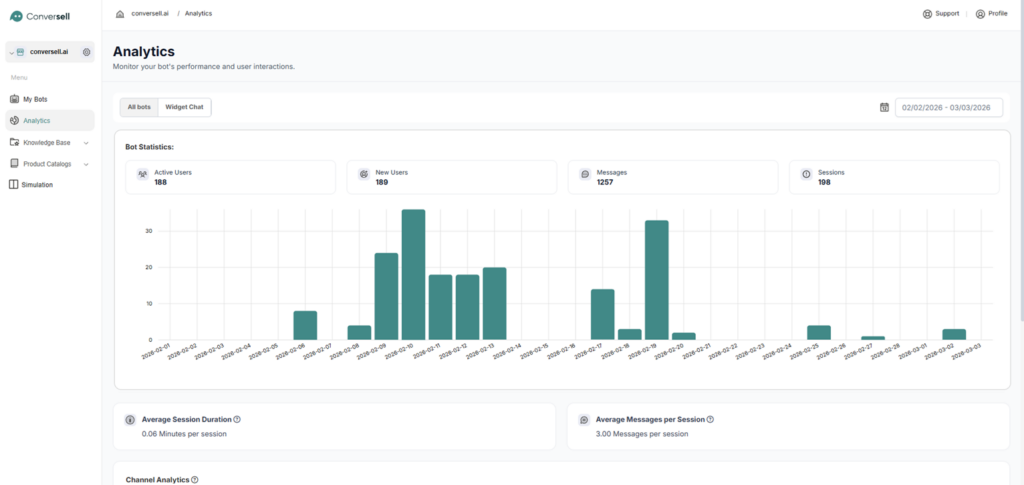
The Analytics platform aggregates execution metrics and user engagement variables into a central dashboard to monitor bot performance over time.
Core Statistics Architecture
| Metric | Definition |
|---|---|
| Active Users | A unique record index counting distinct individual users interacting with the chatbot. |
| New Users | A metric tracking first-time profile initiations within the system index. |
| Messages | Total volume metric tallying inbound and outbound communication packets. |
| Sessions | Cumulative count of unique user communication blocks recorded by the server. |
System Filters & Engagement Matrices
- Channel Selection Filter: Isolates tracking data arrays to evaluate single-bot performance or combines channels to view global metrics across all active deployments.
- Custom Period Selector: Adjusts temporal search boundaries via date-picker calendars.
- Average Session Duration: Tracks aggregate conversation times scaled in minutes.
- Average Messages Per Session: Monitors back-and-forth messaging density to evaluate conversation quality. Higher densities confirm deep intent matches across active workflows.
- Specialized Analytics Modules: Tailored analytics pipelines track individual performance variants across independent social frameworks, notification protocols, and product order tracking requests.

Knowledge Base Data Ingestion & Storage Limits
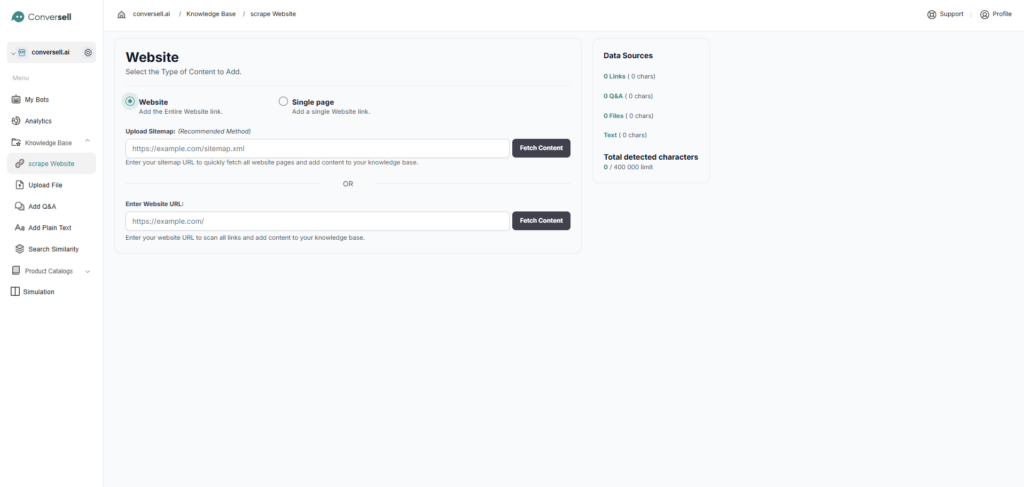
The Knowledge Base serves as the primary data boundary for vector search operations, acting as the definitive source of truth for LLM context retrieval. Storage usage is monitored continuously against account limit parameters.
Structural Ingestion Approaches
A. Web Scraping Engine
Extracts online text information automatically and converts it into vector embeddings.
| Scope / Action | Description |
|---|---|
| Single Page Scope | Targets an isolated URL link to ingest specific pages like privacy terms or singular product listings. |
| Entire Website Scope (Sitemap) | Reads structured corporate .xml sitemaps to quickly discover and index all public site pages. |
| Entire Website Scope (URL Scan) | Explores home directories recursively to locate, parse, and store accessible link paths. |
| Cache Management | Provides manual Reload switches to refresh data vectors or Delete actions to instantly clear specific URL indexes from memory. |
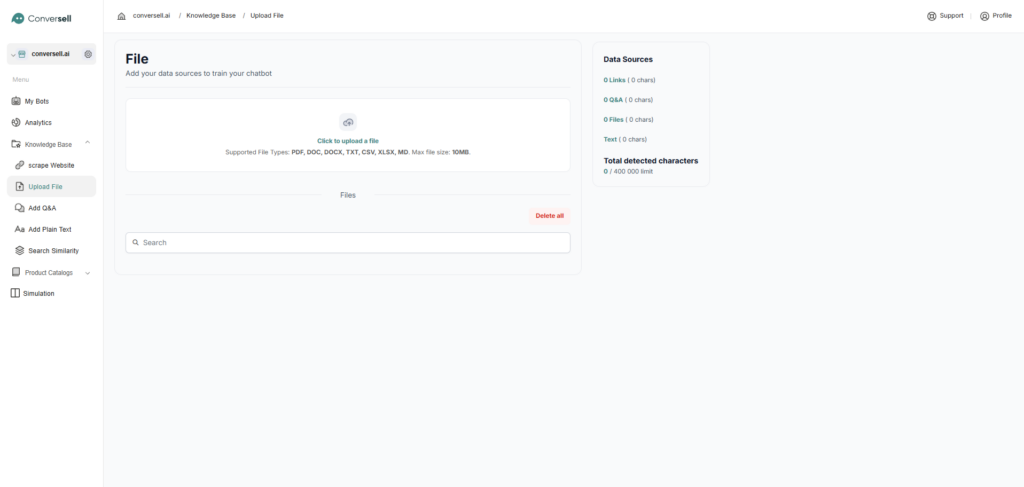
B. File Parsing Engine
Imports unstructured local file formats into the vector storage layer. Supports direct processing for: PDF, DOC, DOCX, TXT, CSV, XLSX, and MD.
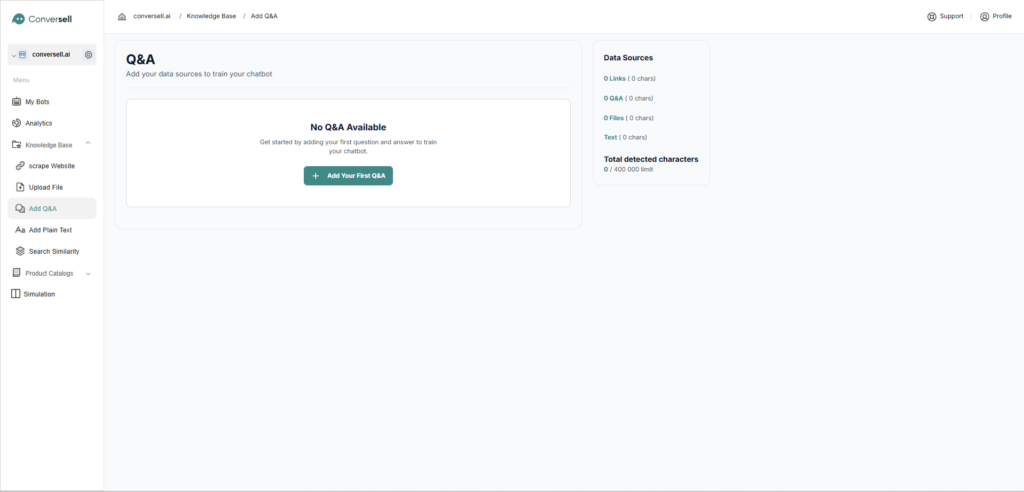
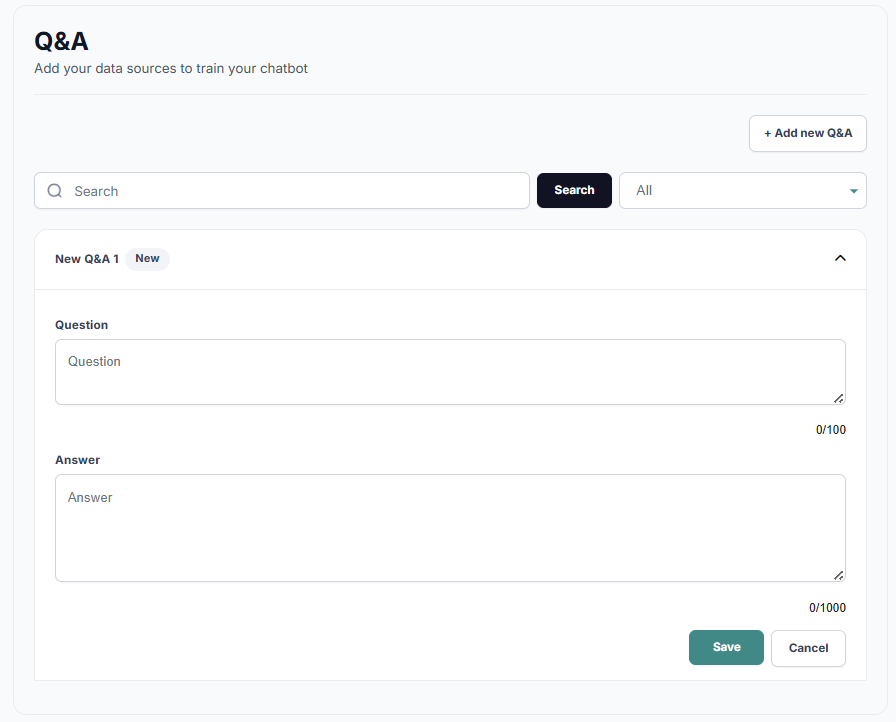
C. Manual Q&A Overrides
Bypasses unstructured vector search by anchoring explicit question strings to designated text answers. This ensures exact brand alignment for highly controlled compliance policies or pricing definitions.
D. Plain Text Canvas
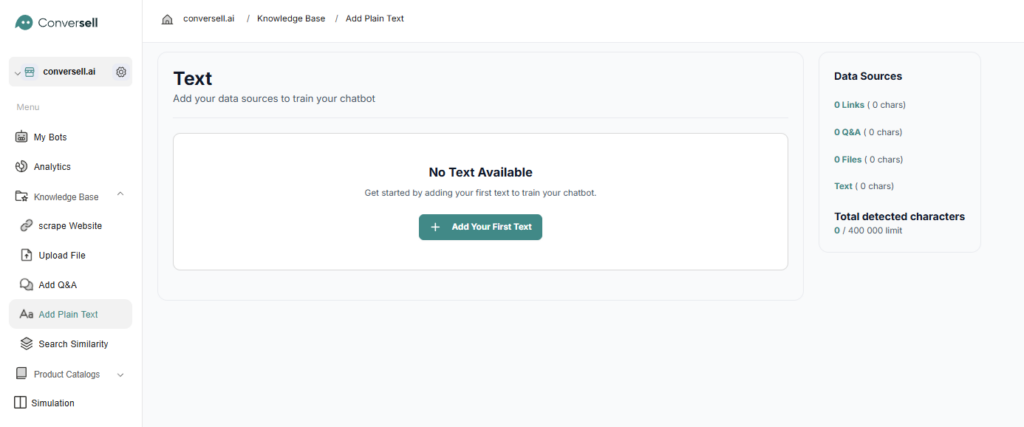
Provides an open text block configuration box for copy-and-paste text data. Best used for temporary system text additions, immediate notice adjustments, or quick testing workflows.